
Differential Reports
Getting Started
Where do I go to access the Layout Builder Settings Reports?
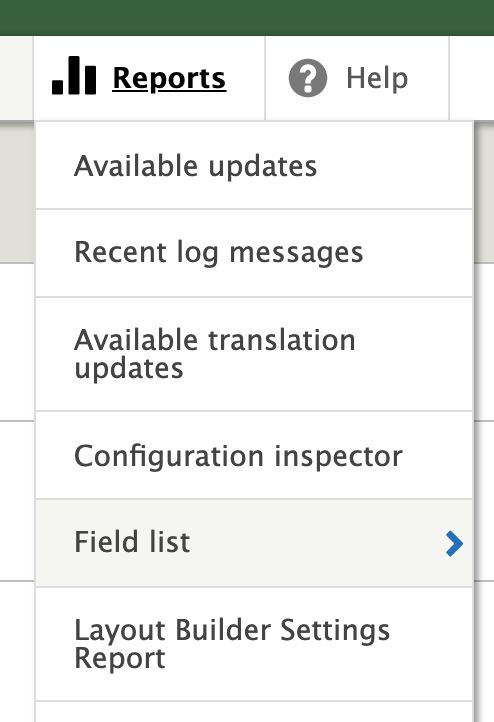
The reports are accessible at /admin/reports/layout-builder-settings
Additionally, you can find the link in the admin toolbar under Reports:
What are Differential Layout Builder Reports?
Differential reports simply show the difference between two different subjects. This is helpful to maintain consistency across your system, if you reuse patterns in different contexts.
Here are some use cases:
- Compare settings between two different bundles
- Compare settings between two different displays on the same bundle
- Compare settings between a bundle display and an overridden entity
- Compare settings between two entities overriding the same bundle display
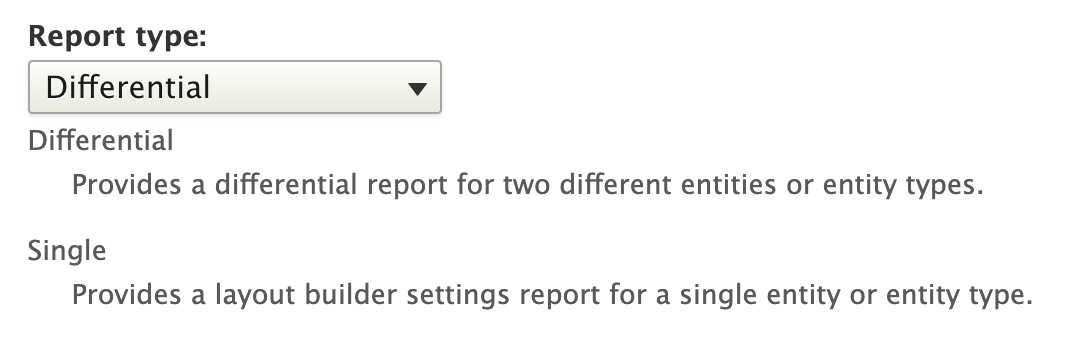
To select this type of report:
Report type: Differential
What are Subjects?
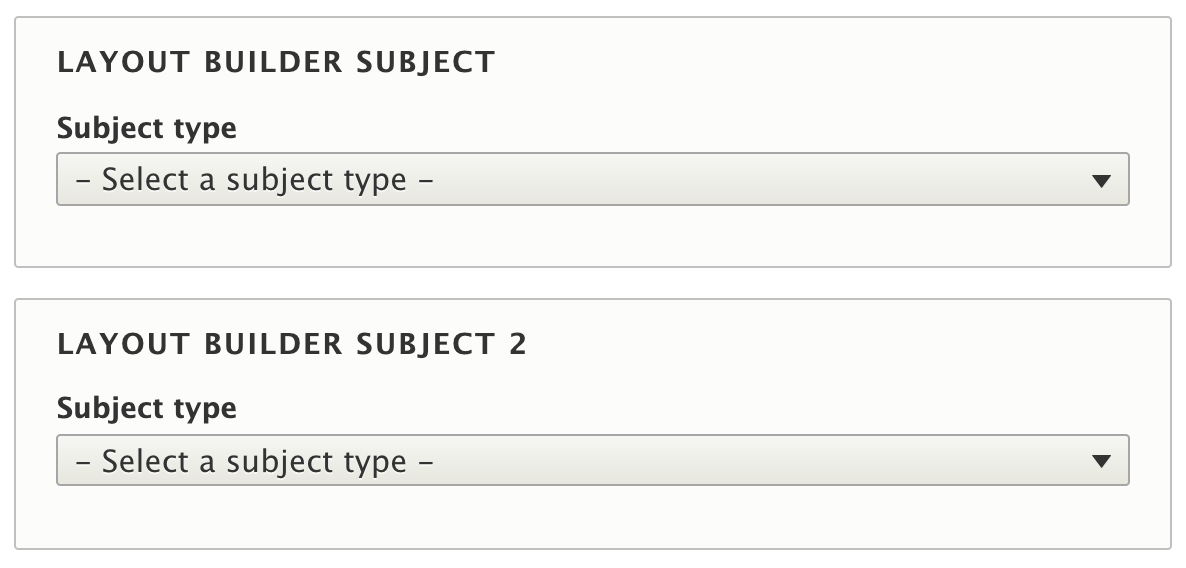
In the context of the layout builder settings report, a subject is simply the focus of a particular report. Since differential reports compare two different things, you need to specify two different subjects.
To specify the different subjects you wish you to compare, populate the "Layout Builder Subject" and "Layout Builder Subject 2" fields:
What kinds of subjects does this report work with?
At the time of this writing, there are two subject types:
- Entity types display - Focuses on when layout builder is set up to control layout behavior for a particular display on an entity.
For example, if you have a content type called Article, and you use layout builder on the Default display, this would be considered an "entity type display".
To report on this subject type you would set the following field options:
Subject type: Entity type display
Entity type display: Article content items (node.article.default)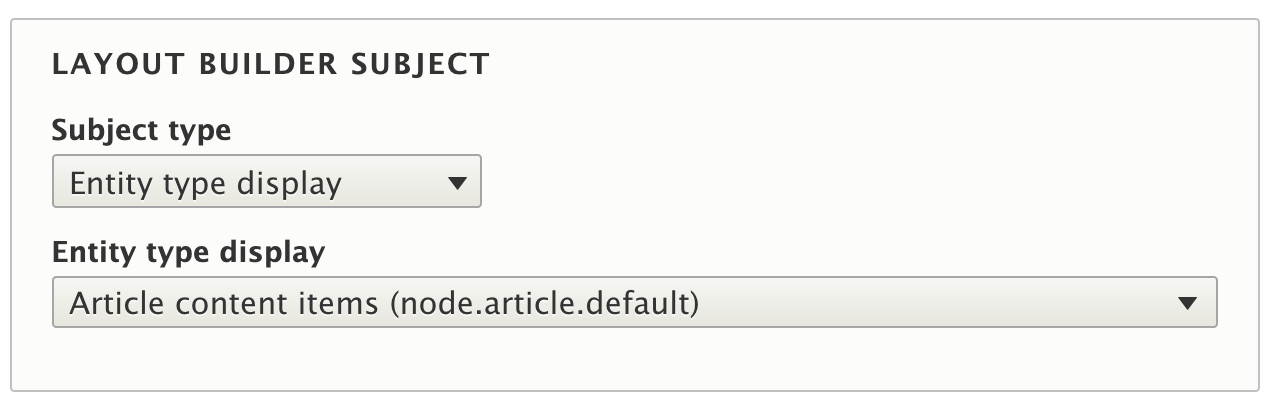
- Entity override - Focuses on when you choose to override the layout builder settings an individual entity (node, block, etc).
For example, if you needed to customize an individual article to include a promotional block on the page, you might decide to override the layout settings for that particular node.
To report on this subject type you would set the following field options:
Subject type: Entity override
Subject entity type: node
Subject entity: My Overriden Article (22957)

How do you generate and read the report?
Once you've populated the subjects you want to compare, as specified above, press the "Generate Report" button. If everything worked correctly, you should see your report in a table at the bottom of the page:
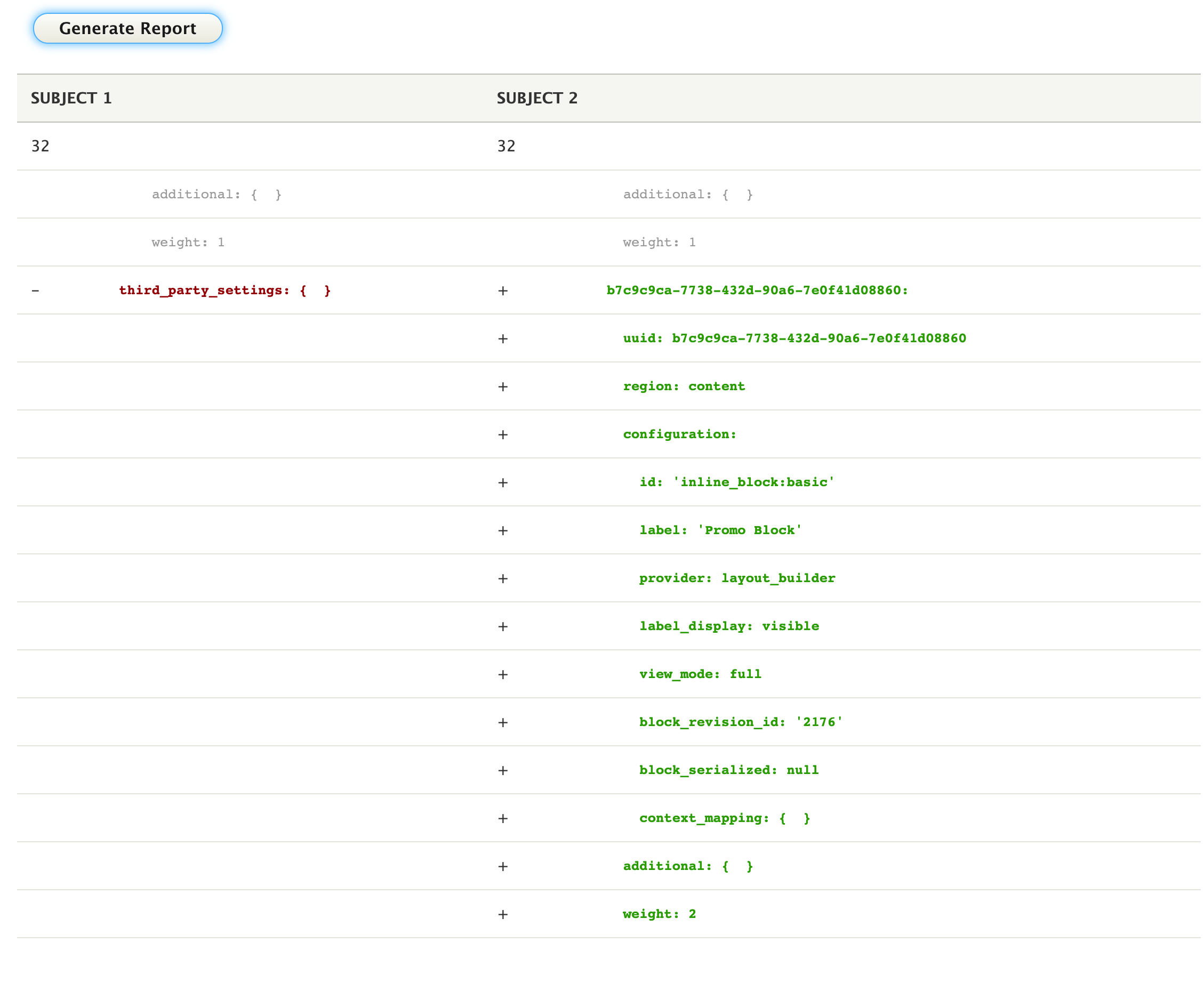
The differential report works in much the same way that pull/merge requests and patch files do. They show you a before and after view. In the example screenshot above you can see that the overridden article has added some config related to an inline-block with the label of "Promo Block".
Help improve this page
You can:
- Log in, click Edit, and edit this page
- Log in, click Discuss, update the Page status value, and suggest an improvement
- Log in and create a Documentation issue with your suggestion
