
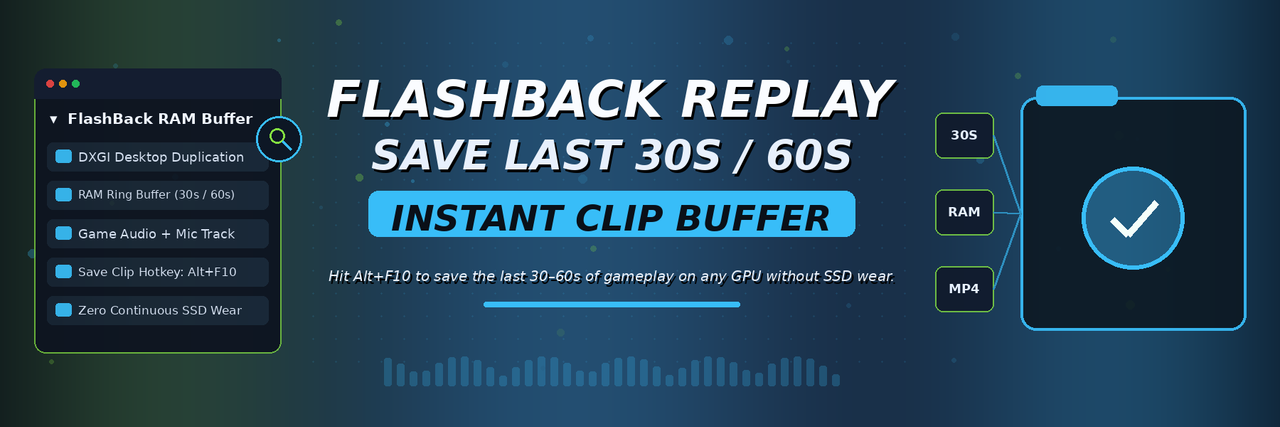


NVIDIA ShadowPlay refusing to turn on, AMD ReLive missing on your laptop iGPU, or OBS Replay Buffer eating too much RAM? Keep a lightweight circular RAM buffer running quietly in the background and press Alt+F10 whenever something awesome happens.
FlashBack Replay Buffer uses Windows Desktop Duplication (DXGI) and a circular RAM ring buffer: continuously holding only the last 30, 60, or 120 seconds of compressed frames in memory (writing zero bytes to your SSD until you press Alt+F10).
This project is aimed at Windows 10 and Windows 11 (64-bit) PC and laptop gamers who want reliable instant replay clips across NVIDIA, AMD, and Intel integrated/Arc graphics without driver login bloat.
| Scenario / Issue | Cause | Solution |
|---|---|---|
| NVIDIA App / ShadowPlay requires login or turns off randomly | Driver overlay services fail or refuse to record desktop/windowed games | Use standalone DXGI capture that works reliably with zero account login |
| Gaming laptop with Intel/AMD iGPU lacks hardware ReLive/ShadowPlay | OEM laptop drivers strip built-in instant replay features | Encode via QuickSync / AMF / NVENC or fast x264 ultrafast fallback |
| Continuous recording fills up SSD and wears out flash memory | Traditional screen recorders write gigabytes to disk every minute | Keep rolling segments strictly in RAM until you press Alt+F10 |
| Discord friends can't hear your mic reaction in saved clips | Single-track capture records game audio without microphone | Mix System Game Audio + Microphone cleanly into the saved .mp4 |
Download FlashBackReplay.zip — Latest GitHub Release (Windows x64)
View All Releases & Changelog · Report an Issue
- Circular RAM Ring Buffer holds the last
30s,60s, or120sin memory—zero continuous SSD writes. - Press global hotkey (
Alt+F10default) to flush the buffer immediately into a ready-to-share.mp4clip. - Captures
1080p/720pat60 FPSor30 FPSwith System Audio + Microphone mixing. - Works across NVIDIA, AMD Radeon, and Intel Iris/Arc graphics with zero account login.
[FlashBack] Replay Buffer Armed (Hotkey: Alt+F10 | Window: 45s | 1080p 60fps)
[INFO] Capture Engine   : DXGI Desktop Duplication + NVENC Hardware Encoder
[INFO] Buffer Usage     : 68.4 MB RAM (0 bytes written to SSD while idle)
[OK]   Clip Saved!      : D:\Videos\FlashBack\Replay_2026-11-23_19-42-10.mp4 (41.2 MB)
The release ZIP is named FlashBackReplay.zip; the Windows executable inside is named FlashBackReplay.exe.
- Close FlashBack Replay before updating or replacing executable files.
- Click Download FlashBackReplay.zip above.
- Right-click the downloaded archive and choose Extract All.
- Open the extracted folder and run
FlashBackReplay.exe. - Review the options and output paths before processing files.
Requirements: Windows 10 or 11 (64-bit) with DirectX 11/12 graphics.
- Offline & standard user permissions:
FlashBackReplay.exeruns locally without uploading your personal files and does not require disabling Windows Defender. - Windows SmartScreen: Because this is an independent open-source utility without a commercial EV code-signing certificate, Windows SmartScreen may show "Windows protected your PC" on first launch. Click More info → Run anyway after verifying the release checksum on the Releases page.
Because the ring buffer lives in RAM (~60–120 MB), your NVMe drive is untouched until you actually save a clip.
Doesn't require GeForce Experience or proprietary driver accounts.
Captures your voice reactions alongside in-game sound effects.
Save a 60s highlight and compress it to 10 MB in seconds.
FlashBack saves triggered replay clips to Videos\FlashBack:
%USERPROFILE%\Videos\FlashBack\
Typical directory layout:
RAM Ring Buffer [Last 60 Seconds]
        │  (Press Alt+F10)
        ▼
%USERPROFILE%\Videos\FlashBack\Replay_2026-11-23_19-42.mp4
If you use HDR on Windows 11, enable the HDR-to-SDR Tone Mapping toggle in FlashBack settings so clips don't look washed out.
Follow these steps to get started:
- Extract
FlashBackReplay.zipand launchFlashBackReplay.exe. Minimizes quietly to the Windows system tray. - Choose buffer length (
30s,60s,120s), FPS (60/30), and audio devices. Verify your save hotkey (Alt+F10default). - Play your game normally—the buffer runs silently in RAM. Press
Alt+F10whenever you want to save the last 30–60 seconds. - Open
Videos\FlashBackto view your.mp4clip. Optionally compress to 10 MB withClipShrinkfor Discord.
FlashBack writes to disk only when you press the Save Clip hotkey.
FlashBack displays buffer duration, active encoder, RAM ring footprint, audio sources, and saved clip path.
Does FlashBack constantly write video to my SSD?
No. The rolling replay buffer stays entirely in RAM until you press Alt+F10 to save a clip.
Does it work on laptops without an NVIDIA graphics card?
Yes—it uses Windows DXGI Desktop Duplication and supports Intel QuickSync, AMD AMF, NVIDIA NVENC, and CPU encoding.
Can I record my microphone along with game sound?
Yes—enable 'Include Microphone' and adjust the mic/game volume balance sliders.
- ClipShrink-DiscordCompressor — Compress gameplay clips to exact 10 MB / 50 MB Discord limits
- ShortsCrop-AutoVerticalVideo — Convert 16:9 horizontal videos into 9:16 TikTok/Shorts with captions
- MiniHUD-LightweightFPSOverlay — Compact borderless FPS, frametime & GPU temp overlay
- GIFMaker-ClipToWebP — Convert gameplay videos into sharp GIF & animated WebP loops
Independent open-source desktop utility for Windows.