# Payment Method Messaging Element
自动解释先买后付这一付款选项。
The Payment Method Messaging Element is a UI component for informing a customer about available buy-now-pay-later plans. It automatically determines the available plans and conditions, generates a localized description, and displays it in your form’s theme.
## Create and mount the Payment Method Messaging Element
#### HTML + JS
Use Stripe Elements to include the [Payment Method Messaging](https://docs.stripe.com/js/elements_object/create_element?type=paymentMethodMessaging) Element on your site.
1. Add the Stripe.js script on your page by adding it to the `head` of your HTML file:
```html
```
2. Create a placeholder element in your page where you want to mount the Payment Method Messaging Element:
```html
```
3. On your product, cart, and payment pages, include the following code to create an instance of Stripe.js ([with locale](https://docs.stripe.com/js/appendix/supported_locales)) and mount the Payment Method Messaging Element:
```js
// Set your publishable key. Remember to change this to your live publishable key in production!
// See your keys here: https://dashboard.stripe.com/apikeys
const stripe = Stripe('<>');
const elements = stripe.elements();
const options = {
amount: 9900, // 99.00 USD
currency: 'USD',
// (optional) the country that the end-buyer is in
countryCode: 'US',
};
const PaymentMessageElement =
elements.create('paymentMethodMessaging', options);
PaymentMessageElement.mount('#payment-method-messaging-element');
```
#### React
Use Stripe Elements to include the [Payment Method Messaging](https://docs.stripe.com/js/elements_object/create_element?type=paymentMethodMessaging) Element on your site.
1. 从 npm 公共注册表安装 [React Stripe.js](https://www.npmjs.com/package/@stripe/react-stripe-js) 和 [Stripe.js 加载器](https://www.npmjs.com/package/@stripe/stripe-js)。
```bash
npm install --save @stripe/react-stripe-js @stripe/stripe-js
```
2. In your product, cart, and payment pages, include the `PaymentMethodMessagingElement` Component:
```jsx
import {Elements, PaymentMethodMessagingElement} from '@stripe/react-stripe-js';
import {loadStripe} from '@stripe/stripe-js';
// Set your publishable key. Remember to change this to your live publishable key in production!
// See your keys here: https://dashboard.stripe.com/apikeys
const stripePromise = loadStripe('<>');
const ProductDetail = () => (
);
```
> If your integration requires you to list payment methods manually, see [Customize payment methods](https://docs.stripe.com/elements/payment-method-messaging.md#customize-payment-methods).
## Optional: Use with Stripe Connect
*Connect* (Connect is Stripe's solution for multi-party businesses, such as marketplace or software platforms, to route payments between sellers, customers, and other recipients) platforms that create direct charges must identify the connected account that renders the Payment Method Messaging Element. On your front end, before creating the `PaymentMessageElement`, set the `stripeAccount` option on the Stripe instance:
```javascript
const stripe = Stripe('<>', {
stripeAccount: '{{CONNECTED_ACCOUNT_ID}}',
});
```
## Dynamic display
The element dynamically displays payment plans that the customer is eligible for. These depend on the customer’s location and currency. They also depend on the amount of the payment, as in this example:
Some payment methods offer “pay now” in addition to “pay later” plans. If only a “pay now” option is available, nothing is shown.
## Customize Payment Methods
If you use [Dynamic payment methods](https://docs.stripe.com/payments/payment-methods/dynamic-payment-methods.md), the Payment Method Messaging Element automatically pulls your payment method preferences from the [Stripe Dashboard](https://dashboard.stripe.com/settings/payment_methods) to dynamically show the most relevant payment methods to your customers. Alternatively, you can list payment methods manually using [paymentMethodTypes](https://docs.stripe.com/js/elements_object/create_element?type=paymentMethodMessaging#elements_create-options-paymentMethodTypes). The Payment Method Messaging Element still only displays plans that the customer is eligible for based on their location, the currency, and the amount of the payment.
#### HTML + JS
```js
// Set your publishable key. Remember to change this to your live publishable key in production!
// See your keys here: https://dashboard.stripe.com/apikeys
const stripe = Stripe('<>');
const elements = stripe.elements();
const options = {
amount: 9900, // 99.00 USD
currency: 'USD',
paymentMethodTypes: ['klarna', 'afterpay_clearpay', 'affirm'],
// (optional) the country that the end-buyer is in
countryCode: 'US',
};
const PaymentMessageElement =
elements.create('paymentMethodMessaging', options);
PaymentMessageElement.mount('#payment-method-messaging-element');
```
#### React
```jsx
import {Elements, PaymentMethodMessagingElement} from '@stripe/react-stripe-js';
import {loadStripe} from '@stripe/stripe-js';
// Set your publishable key. Remember to change this to your live publishable key in production!
// See your keys here: https://dashboard.stripe.com/apikeys
const stripePromise = loadStripe('<>');
const ProductDetail = () => (
<>
{/* ... */}
);
```
By default, the Payment Method Messaging Element uses a dynamic ordering that optimizes payment method display for each user. Use the [paymentMethodOrder](https://docs.stripe.com/js/elements_object/create_element?type=paymentMethodMessaging#elements_create-options-paymentMethodOrder) option to set your preferred order.
## Info modal
When the customer selects the info icon (ⓘ), the Payment Method Messaging Element displays a modal with details about buy now, pay later payment plans.
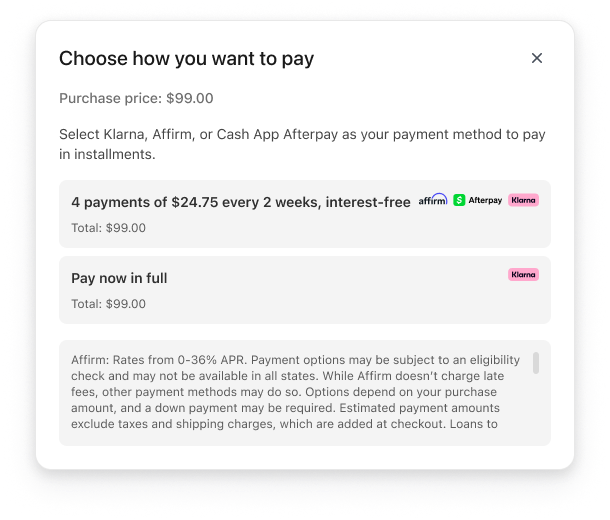
A preview of the info modal
The modal includes:
- A step-by-step overview of how to use a buy now, pay later payment method
- A summary of terms for each available payment plan
- A link to the full terms for each available payment plan
## Supported plans
The Payment Method Messaging Element supports payment plans from:
- [Affirm](https://docs.stripe.com/payments/affirm.md#payment-options)
- [Afterpay / Clearpay](https://docs.stripe.com/payments/afterpay-clearpay.md#payment-options)
- [Klarna](https://docs.stripe.com/payments/klarna.md#payment-options) (for one-time payments only)
> Messaging doesn’t render if the [countryCode](https://docs.stripe.com/js/elements_object/create_element?type=paymentMethodMessaging#elements_create-options-countryCode) and [currency](https://docs.stripe.com/js/elements_object/create_element?type=paymentMethodMessaging#elements_create-options-currency) combination passed has no eligible payment plans.
## 外观
Use the [Appearance API](https://docs.stripe.com/elements/appearance-api.md) to customize the font and logo of your messaging. You can select a [theme](https://docs.stripe.com/elements/appearance-api.md?platform=web#theme) as in the example below.
Use [variables](https://docs.stripe.com/elements/appearance-api.md#variables) and [rules](https://docs.stripe.com/elements/appearance-api.md#rules) for additional customization.
```jsx
const appearance = {
variables: {
colorText: 'rgb(84, 51, 255)',
colorTextSecondary: 'rgb(28, 198, 255)',
fontSizeBase: '16px',
spacingUnit: '10px',
fontWeightMedium: 'bolder',
fontFamily: 'Ideal Sans, system-ui, sans-serif',
},
rules: {
'.PaymentMethodMessaging': {
textAlign: 'right',
}
}
};
const elements = stripe.elements({appearance});
const options = {
amount: 9900, // 99.00 USD
currency: 'USD',
paymentMethodTypes: ['klarna', 'afterpay_clearpay', 'affirm'],
// (optional) the country that the end-buyer is in
countryCode: 'US',
};
const PaymentMessageElement = elements.create('paymentMethodMessaging', options);
```
## 向您的客户披露 Stripe
Stripe 收集有关客户与 Elements 互动的信息,以向您提供服务、防范欺诈并改进其服务。这包括使用 Cookie 和 IP 地址来识别客户在单次结账会话中看到的 Elements。您有责任披露并获得 Stripe 以这些方式使用数据所需的所有权利和许可。有关更多信息,请访问我们的[隐私中心](https://stripe.com/legal/privacy-center#as-a-business-user-what-notice-do-i-provide-to-my-end-customers-about-stripe)。
The Payment Method Messaging Element is a tool that allows you to message various buy now, pay later payment options to your customers. You’re responsible for compliance with applicable laws, rules, and regulations regarding the promotion of buy now, pay later payment options.